LankaNova POSSYSTEMS

User manual

Everything you need to know, in plain words

How your data and licence are protected, how VAT tax invoices and IRD reports work, and the everyday tasks step by step. Read it here on your phone, or keep the PDF.

PDF, about 3.5 MB · version 1.9.6 · A4, prints well

Security and your data

Protected in layers, so one slip never opens everything

Your sales, your customers and your staff records are the most valuable things in your business. LankaNova POS SYSTEMS protects them in layers, so that no single mistake or trick opens everything. This chapter explains each layer in plain words, what it stops, and the few things that you should do yourself.

1

Sign-in: every person has their own key

Nobody shares an account. Every bill, void and price change carries the name of the person who did it.

  • Passwords are never stored. The POS keeps only a salted, one-way scrypt fingerprint of each one, so even a copy of the data file does not reveal a single password.
  • A password needs at least 8 characters, may not be a common password and may not be the username. Owner and manager PINs have 6 digits.
  • Guessing does not work. Every fifth wrong try locks that account, for 5, then 10, 20, 40, 80 and finally 160 minutes, and the count keeps growing.
  • Waiters and kitchen staff cannot sign in at the till at all. They use a PIN on their own paired phone or screen, and that PIN opens only their job.
2

Permissions: people can do only their job

Owner, manager, cashier, waiter and kitchen roles decide what each person sees and does.

  • Profit, margins, the activity log, backups, restore and tax settings are owner-only. A cashier sees none of them.
  • Voiding a bill, giving a discount or changing a price needs the right role, and a void always needs a written reason.
  • A paid bill can never be edited. It can only be cancelled, and the cancellation is kept on record (for a VAT bill it gets its own credit note number).
3

A log that shows when someone tampers with it

The activity log records who signed in, sold, discounted, voided, changed a price or changed a setting, and when.

  • Each entry carries a fingerprint of the entry before it, like links in a chain. If anyone edits an entry, or removes one from the middle, the chain breaks.
  • Settings, Database & cloud, Check tells you at once if the chain is broken and where.
  • Only the owner can read the activity log.
4

Your data stays yours

Your shop's data is saved on your own PC first, in one file, so selling never depends on the internet or on anyone else's server.

  • Your cloud copy lives in a database that belongs to your business alone. Another business's data is never in it and never reachable from it.
  • Clinical records (consultation notes and prescriptions) never leave the shop PC at all, and only clinicians can read them.
  • Phones and tablets on your shop WiFi talk to your PC, not to a public server.
  • Windows keeps your Documents folder private from other Windows accounts. For stronger protection against a stolen PC, turn on BitLocker (see the checklist below).
5

Backups that are safe when they leave the shop

A backup that anyone can open is a leak waiting to happen, so copies that leave your PC are locked.

  • An automatic backup is made every day and before every update, and kept on the PC for quick recovery.
  • Save a copy (USB) asks you for a password and writes an AES-256 encrypted file. Without the password it cannot be read. A wrong password, or a file that was changed even by one byte, is refused and nothing is touched.
  • Restoring is owner-only, and the POS keeps a safety copy of your current data first, so a mistaken restore can be undone.
6

The program protects itself

A shop program must not be easy to open up and rewire, so the installed program is locked down.

  • The program checks its own code when it starts and refuses to run if it was changed.
  • It cannot be started as a plain script or with debugging switches, and developer tools are switched off.
  • The window can show only the POS's own pages. Links open in your browser, and the app asks for no camera, location, USB or other permission.
  • Test and developer features do not exist in the version you install.
7

A licence that cannot be copied or faked

Your licence is digitally signed, so it cannot be edited, and it is tied to your PC and your shop, so it cannot be moved.

  • Copying the POS and its data to another PC does not work: the licence names the PC it was issued to and the other PC refuses it. Moving to a new PC needs a new activation key.
  • Changing the Windows clock does not help. The POS remembers the latest time it has seen in three separate places and counts its own running time.
  • The POS checks its licence every hour and keeps working for up to 7 days with no internet, so a power cut or a broken router never stops your till.
8

Updates you can trust

An update is code that runs on your shop PC, so it must come from LankaNova and nobody else.

  • Every release is digitally signed before it is published, with a key that is kept off the servers that deliver it.
  • Your POS downloads the update, checks the signature and installs it only if it is genuine. An unsigned or altered file is deleted and never run.
  • A backup is made before every install.
9

Phones, tablets and kitchen screens

Mobile access is switched on only when you want it, and each device can do only the job it was paired for.

  • Pairing needs a 6-digit code that works once and expires in five minutes.
  • Every device has its own long secret token, stored only as a one-way fingerprint on the PC. Remove a device in Settings, Mobile access and it is cut off immediately.
  • The live-update link uses a one-time ticket that lasts 30 seconds, so secrets never sit in a web address.
  • Every request is checked against the kind of device, the person's role and your licence.

What you should do too

  • Turn on BitLocker (Windows Pro) on every PC that holds customer or clinical data. It is the one protection the POS cannot add for you.
  • Give every person their own account. Never share the owner password; use a different PIN for each waiter.
  • Remove or deactivate a person's account on the day they leave.
  • Save a password-protected copy to a USB stick every week, and keep the stick somewhere other than the shop.
  • Choose a USB-copy password you will not forget. Without it the copy cannot be opened by anyone, including LankaNova.
  • Keep staff WiFi separate from guest WiFi, and give the POS PC a fixed address.
  • Keep Windows updated and use up-to-date antivirus.
  • Run Settings, Database & cloud, Check once a month and read the result.

Honest limits

  • No program can fully stop the owner of a PC who is determined and technical. The aim is to make cheating expensive, visible and short-lived, and to keep the real control on LankaNova's servers (updates, cloud sync and licence renewal).
  • The shop data file on the PC is not encrypted by the POS itself. Anyone who can sign in to Windows as you can read it. BitLocker closes that door when the PC is switched off or stolen.
  • Mobile access runs over your shop WiFi without HTTPS. Keep that WiFi private.
  • Found something that looks wrong? Tell us privately at lankanova08@gmail.com and we will act on it.

Tax invoices, reports and accounting

VAT invoices and the IRD report, without the paperwork

From version 1.9.6 every business type can issue VAT tax invoices and produce the reports an accountant or the Inland Revenue (IRD) asks for. Nothing changes for a shop that is not VAT registered: bills stay plain receipts until you switch VAT on.

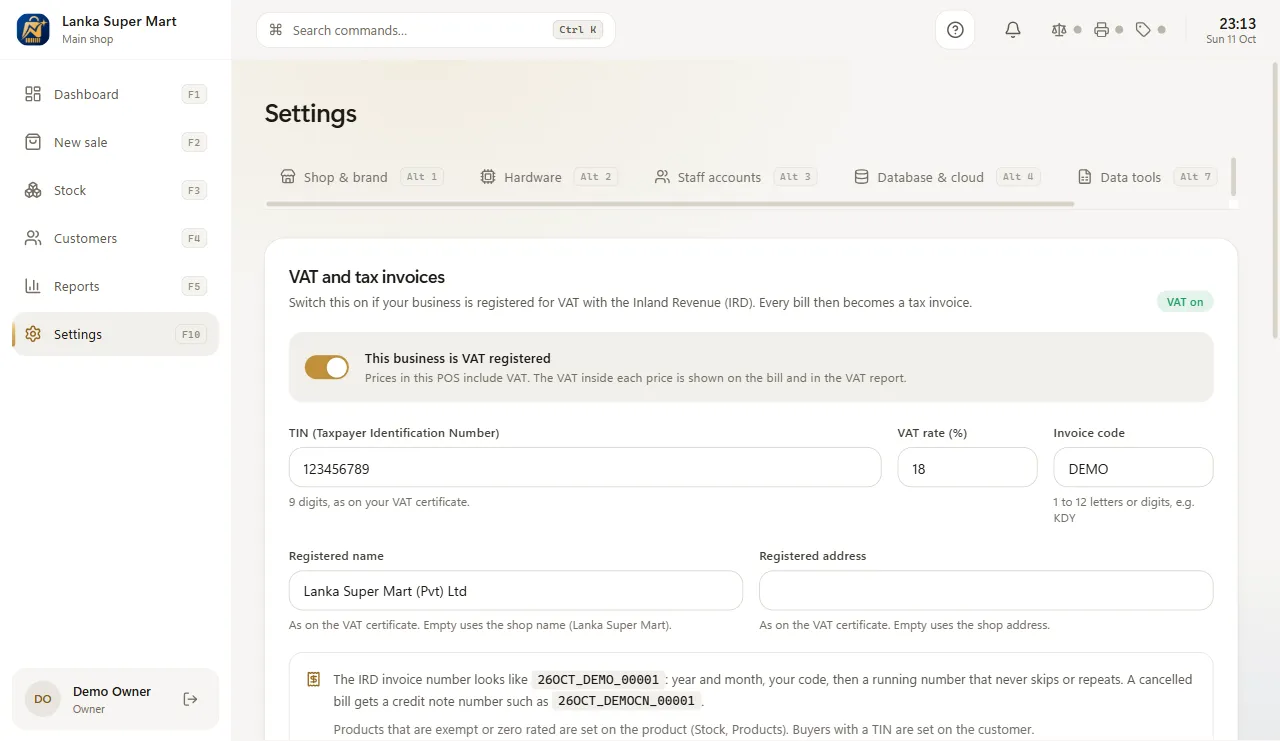
Settings, Tax and VAT screen
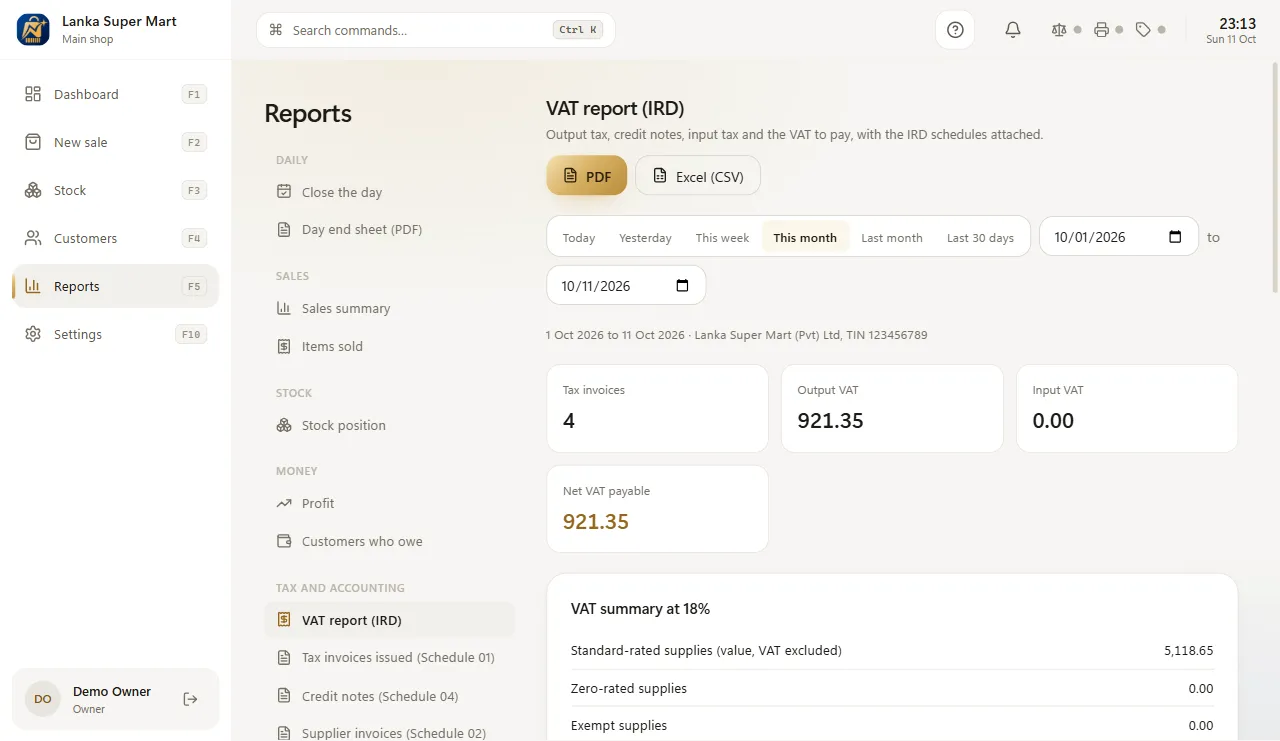
Reports, VAT report for the IRD

Tax invoices on every bill

Settings, Tax & VAT. Enter your TIN (9 digits), the VAT rate (18%) and an invoice code. Every bill, in every business type, then carries your TIN, a running IRD number such as 26OCT_KDY_00001 that never skips or repeats, the value of supply, the VAT inside the price and the buyer's TIN when you know it.

Standard, zero rated and exempt

Each product has a VAT class. Prices include VAT; the VAT inside each price is worked out line by line, and bill discounts reduce the VAT fairly. Restaurants use the same rate as the rest of the shop.

Credit notes

Cancel a tax invoice and it gets its own credit note number (for example 26OCT_KDYCN_00001). The original figures stay on record, so the VAT report shows both.

A4 tax invoice PDF

Open any bill in F8 Bills and press Tax invoice PDF (Credit note PDF for a cancelled bill). The 80 mm receipt also switches to a tax-invoice layout.

Customer and supplier TINs

Add a TIN to a customer once and it is printed on every invoice to them. When you receive goods, enter the supplier's TIN, invoice date and the VAT on their invoice so the VAT report can show your input tax.

SSCL and NBT

Switch on the levies that apply to you. They are not added to bills; the VAT report works out SSCL on the quarter's turnover above your threshold and NBT per quarter, so you can set the money aside.

Ledger names

Settings, Tax & VAT also holds the account names (Sales, VAT output, Cash and so on) that the accountant's files use, so they match your books.

One Reports screen

One list, grouped by what you want to do. Every report works the same way.

Daily
Close the day (cash count) and the printable Day end sheet.
Sales
Sales summary by day, payment method and cashier; Items sold.
Stock
Stock position: what is on the shelf, its value, what to reorder and what is expiring.
Money
Profit (owner only) and Customers who owe.
Tax and accounting
VAT report (IRD) with Schedule 01, 02 and 04, SSCL and NBT, and the Accounting export.
Your business
The extra reports of your business type: restaurant, hotel, clinic, rep performance and more.
Control
Activity log and All branches (owner only).

Four ways to take a report

  • On screen: figures, charts and tables for any date range.
  • PDF: a designed A4 report with your shop's name, address and TIN, ready to print or send.
  • Excel (CSV): the same tables for a spreadsheet.
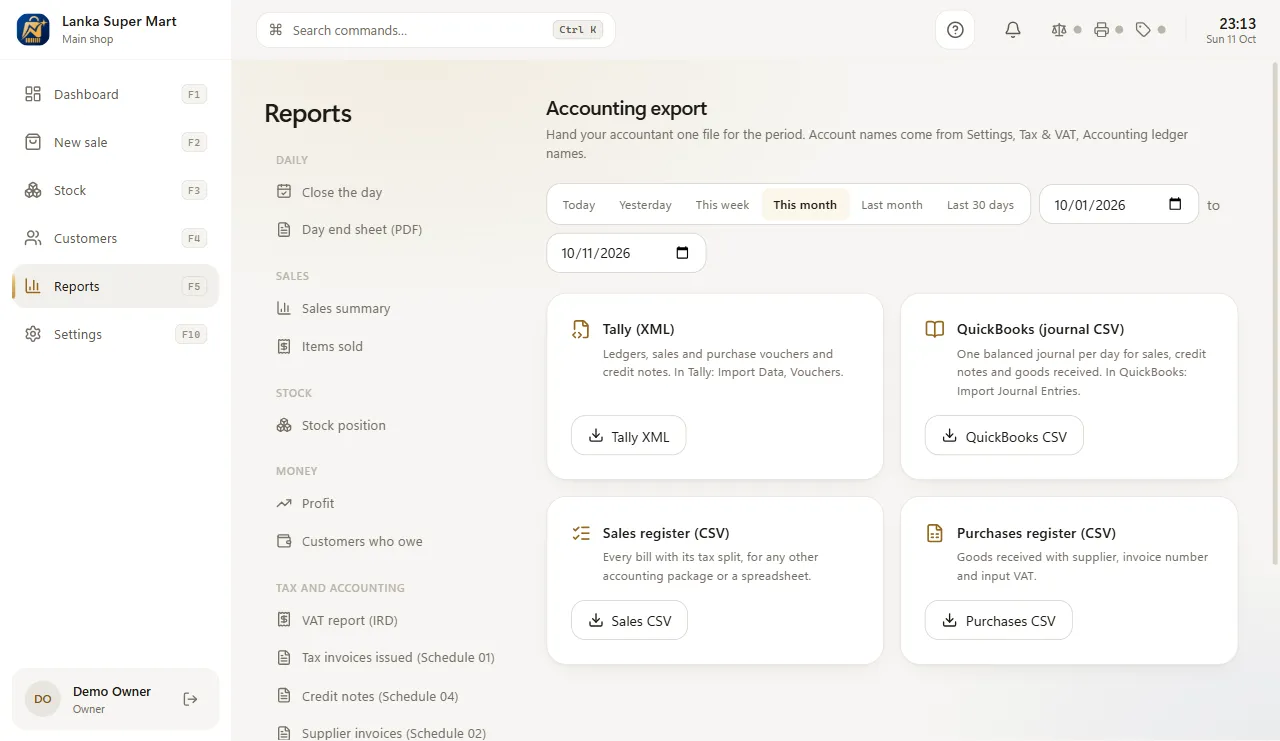
  • Accounting export: Tally XML, QuickBooks journal CSV, sales register and purchases register for the period.
Reports, Accounting export for Tally and QuickBooks

Before you file. The VAT report is prepared from your own bills and goods-received records. Please check it against your records and the IRD's current forms before you file, and ask your accountant to look at the first Tally or QuickBooks file you import.

How do I...?

Everyday jobs, step by step

Tap a job to open its steps.

Make a sale+
  1. 1Press F2 (New sale).
  2. 2Scan a barcode, or type part of a name and press Enter. Type 3* before a scan to sell three.
  3. 3Add a line discount with Alt D if needed, and pick a customer with Alt C for credit, points or a buyer TIN.
  4. 4Choose how they pay (cash, card, bank transfer, or split) and press F9, Complete sale.
  5. 5The receipt prints by itself.
Sell on credit and receive a payment later+
  1. 1Choose the customer, then switch on Put the rest on credit when you complete the sale.
  2. 2Later, open Customers (F4), pick the customer and press Receive payment.
  3. 3Reports, Money, Customers who owe lists everyone with a balance.
Receive stock from a supplier+
  1. 1Stock (F3), Receive stock.
  2. 2Pick or type the supplier, their invoice number, and add each product with the quantity and cost.
  3. 3If you are VAT registered, enter the supplier's TIN, the invoice date and the VAT on their invoice (enter costs without VAT).
  4. 4Save. Quantities and costs update at once.
Close the day+
  1. 1Reports, Close the day.
  2. 2Read what came in by cash, card and bank.
  3. 3Count the drawer and type the cash counted.
  4. 4If there is a difference, write a short note, then press Close the day.
Switch on VAT and tax invoices+
  1. 1Settings, Tax & VAT.
  2. 2Switch on VAT registered and enter your TIN (9 digits).
  3. 3Set the rate (18%) and an invoice code of up to 12 letters or digits.
  4. 4Enter your registered name and address if they differ from the shop details.
  5. 5Save. The next bill is a tax invoice.
Give a product a VAT class+
  1. 1Stock, Products, open the product.
  2. 2Choose Standard, Zero rated or Exempt in the VAT class box (visible when VAT is on).
  3. 3Save.
Cancel a bill (void)+
  1. 1F8, Bills, open the bill.
  2. 2Press Void and type the reason.
  3. 3For a tax invoice the POS prints and keeps a credit note number.
Print or save a tax invoice+
  1. 1F8, Bills, open the bill.
  2. 2Press Tax invoice PDF.
  3. 3Choose where to save it. It opens, ready to print or send by WhatsApp or email.
Get the VAT report for the IRD+
  1. 1Reports, Tax and accounting, VAT report (IRD).
  2. 2Pick the period (for example Last month).
  3. 3Check the figures on screen, then press PDF.
  4. 4Give the PDF to your accountant, or use it with your VAT return.
Send files to your accountant+
  1. 1Reports, Tax and accounting, Accounting export.
  2. 2Pick the period.
  3. 3Press Tally XML, QuickBooks CSV, Sales CSV or Purchases CSV.
  4. 4Choose where to save and send the file.
Save any report as PDF or Excel+
  1. 1Open the report in the Reports list.
  2. 2Pick the dates.
  3. 3Press PDF for a printable A4 report, or Excel (CSV) for a spreadsheet.
Add a staff member+
  1. 1Settings, Staff accounts, Add staff.
  2. 2Type their name, username, role and a password (8 characters or more).
  3. 3For a waiter or kitchen staff, set a PIN instead; they sign in on their paired phone.
Back up and restore+
  1. 1Backups run by themselves every day and before every update.
  2. 2For a copy to keep elsewhere: Settings, Database & cloud, Save a copy (USB), type a password and choose the USB stick.
  3. 3To restore: Settings, Database & cloud, pick a backup and press Restore (owner only; enter the password for a USB copy). Your current data is kept as a safety copy first.
Pair a phone or tablet+
  1. 1Settings, Mobile access: switch mobile access on.
  2. 2Press Add a device. A 6-digit code appears, valid for five minutes.
  3. 3On the phone, open the address shown, type the code, then sign in with your PIN.
  4. 4To cut a device off, press Remove next to it.
Move to a new PC+
  1. 1Ask LankaNova for a new activation key.
  2. 2Install the POS on the new PC and activate it.
  3. 3Restore your latest backup or USB copy, or sign in to your cloud.
  4. 4Sign in with your own account.

Set up

From download to your first sale

  1. 1

    Download

    Open the download page and press Download. The file is called LankaNova-POS-Setup-1.x.x.exe (about 110 MB).

  2. 2

    Install

    Double-click the file. If Windows shows 'Windows protected your PC', press More info, then Run anyway. Choose the folder (the default is fine) and press Install. A desktop shortcut is created.

  3. 3

    Activate

    Open LankaNova POS SYSTEMS. On first start it asks for the App ID (like LNP-7K2MQX) and the activation key (like ABCD-EFGH-JKMN) printed on your LankaNova activation sheet. Connect to the internet for this step only. Each key works once, for one PC.

  4. 4

    Create the owner account

    Type the shop name, address, phone and, if you like, upload your logo. Then create the owner's username and a strong password. The owner can add managers and cashiers later.

  5. 5

    Add your products or services

    Add items one by one, or import a list from Excel in Settings, Data tools. Your starting categories are already there for your business type.

  6. 6

    Connect your hardware

    Settings, Hardware: choose the receipt printer, label printer, scale and cash drawer. Press Print test receipt to check. No printer yet? Choose Save as PDF (test) to see the layout.

  7. 7

    Add your team

    Settings, Staff accounts: one account per person. Set a PIN for anyone who will use a phone, kitchen screen or mobile device.

  8. 8

    Switch on VAT (if you are VAT registered)

    Settings, Tax & VAT: enter your TIN, the rate and an invoice code, then switch VAT on. From then on every bill is a tax invoice. Skip this step if you are not registered.

  9. 9

    Start selling

    The Get-started checklist on the Dashboard ticks itself as you finish each step. Your first backup is made automatically.

Team and phones

Who can do what, and what a phone can do

Roles

Owner
Everything: profit, settings, staff, backups, restore, licence.
Manager
Day-to-day control: stock, offers, voids, approvals, reports (profit and the activity log stay owner-only). Cannot restore a backup or change the licence.
Cashier
Sells, takes payments, looks up stock and customers. No profit or settings.
Waiter
Takes orders on a paired phone with a PIN. Cannot see money reports.
Kitchen
Sees and bumps tickets on the kitchen screen with a PIN.

Phones and tablets on your shop WiFi

Sales rep
See customers and what they owe, browse the wholesale price list, take orders.
Housekeeping
See the room board, mark rooms clean or dirty.
Front desk (hotel)
Arrivals, in-house guests, check-in, folio charges and advances.
Doctor
Today's sessions, call the next patient, consultation notes and prescription.
Clinic reception
Sessions, tokens and the waiting list.
Teacher
Class lists and attendance.
Bookings
Today's appointments and booking new ones.
Owner's numbers
Today's sales figures, read only.

Keyboard shortcuts

Questions and answers

Quick answers

Does it need the internet?+

Only to activate, to sync to your cloud, and to renew the licence at least once every seven days. Selling, printing and reports work offline.

What if my PC breaks?+

Install on a new PC, ask LankaNova for a new activation key, and restore your latest backup (or sign in to your cloud). Nothing is lost if you keep backups.

Can I run it on two PCs?+

Yes. Each PC gets its own key from the dashboard. Branches sync to the owner's cloud view.

What does 'locked' mean?+

If a payment is more than the grace days late, or LankaNova suspends the account, the POS shows a lock screen. Your data is safe. Pay, then press Check again and it opens immediately.

Where is my data?+

In one file on your PC (LankaNova-POS-Systems-[your shop name].db in Documents, pos_system). Backups are in the backups folder next to it.

Can I change my business type?+

A client's type is fixed by the App ID. If you open a different kind of business, LankaNova issues a new App ID.

The receipt is cut off or wrong size.+

Settings, Hardware: set paper width (58 or 80 mm), and check the preview in Settings, Shop & brand. It shows exactly what prints.

Does it support VAT and tax invoices?+

Yes. In Settings, Tax & VAT, enter your TIN and switch VAT on. Every bill then prints as a tax invoice with an IRD-style running number, in every business type, and cancelled bills get credit note numbers. Prices include VAT; products can be standard, zero rated or exempt.

Can it produce the VAT report for the IRD?+

Yes. Reports, Tax and accounting, VAT report gives output tax, credit notes, input tax and VAT payable with the schedules, as a PDF with your shop name. SSCL and NBT are worked out per quarter. Please confirm the final figures with your accountant before filing.

Can I give my accountant Tally or QuickBooks files?+

Yes. Reports, Tax and accounting, Accounting export makes a Tally XML file, a QuickBooks journal CSV and sales and purchases registers for any period.

Can a cashier change or delete sales to hide money?+

No. A bill cannot be edited after it is paid. It can only be cancelled (voided) with a reason, by someone allowed to, and every void, discount and price change is written to the activity log with the person's name and the time. The log is chained, so a removed or edited entry is detected.

What if my PC is stolen?+

Turn on Windows BitLocker (free in Windows Pro) so the disk cannot be read without your sign-in. Copies you keep on a USB stick are password protected. Install on a new PC, activate with a new key and restore your latest copy.

Can someone copy my POS to another PC?+

No. The licence is tied to your PC and your shop, and a copy will not accept it. Moving to a new PC needs a new activation key.

A virtual 'Print to PDF' printer gives a broken page.+

Receipt and label printers need real thermal printers. To preview, choose Save as PDF (test) as the connection type.

Your business

A guide for each of the 24 business types

What you get, how a normal day works and the screens you will use.

Need a hand?

Press the Help (?) button on any screen for the steps of that screen. For anything else, call or message us, and have your App ID ready.