
B · Food & HospitalityReady
Restaurant
Dine-in restaurants with waiters, a kitchen and sometimes a bar.
What you get
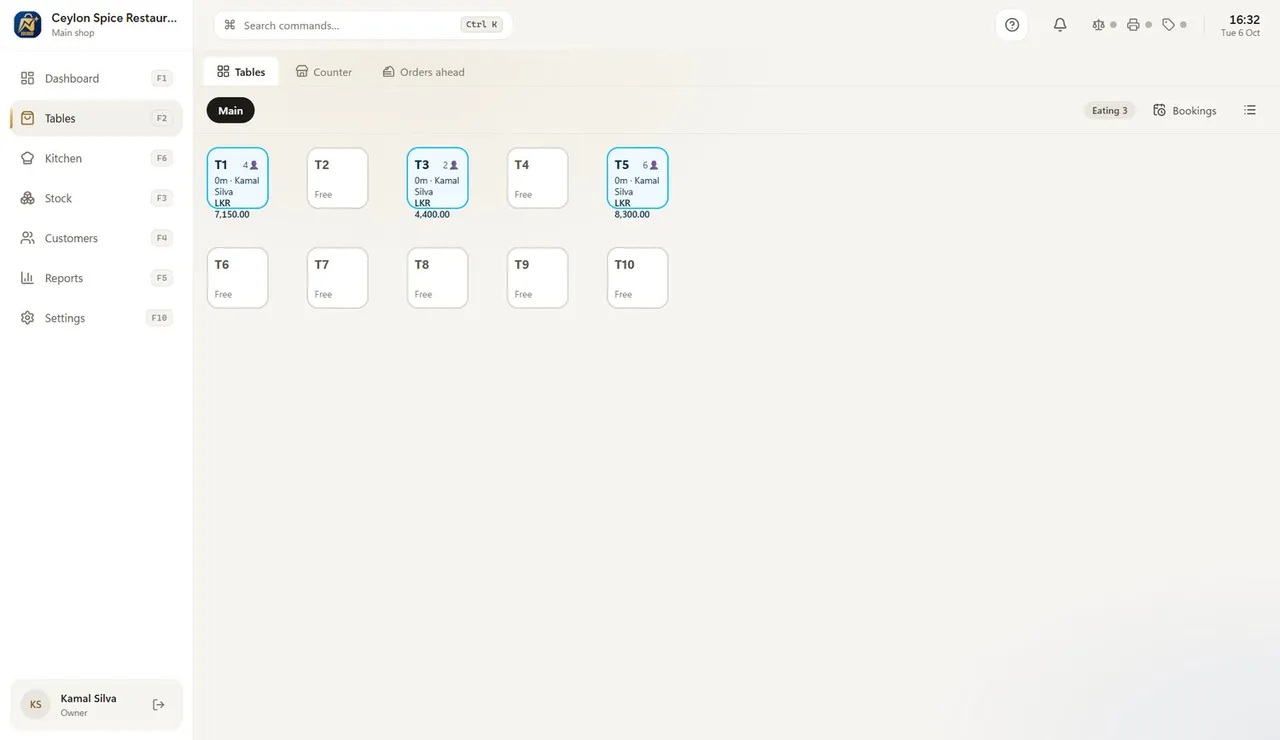
- Table map with live status and timers
- Waiter phones over the shop WiFi, no internet needed
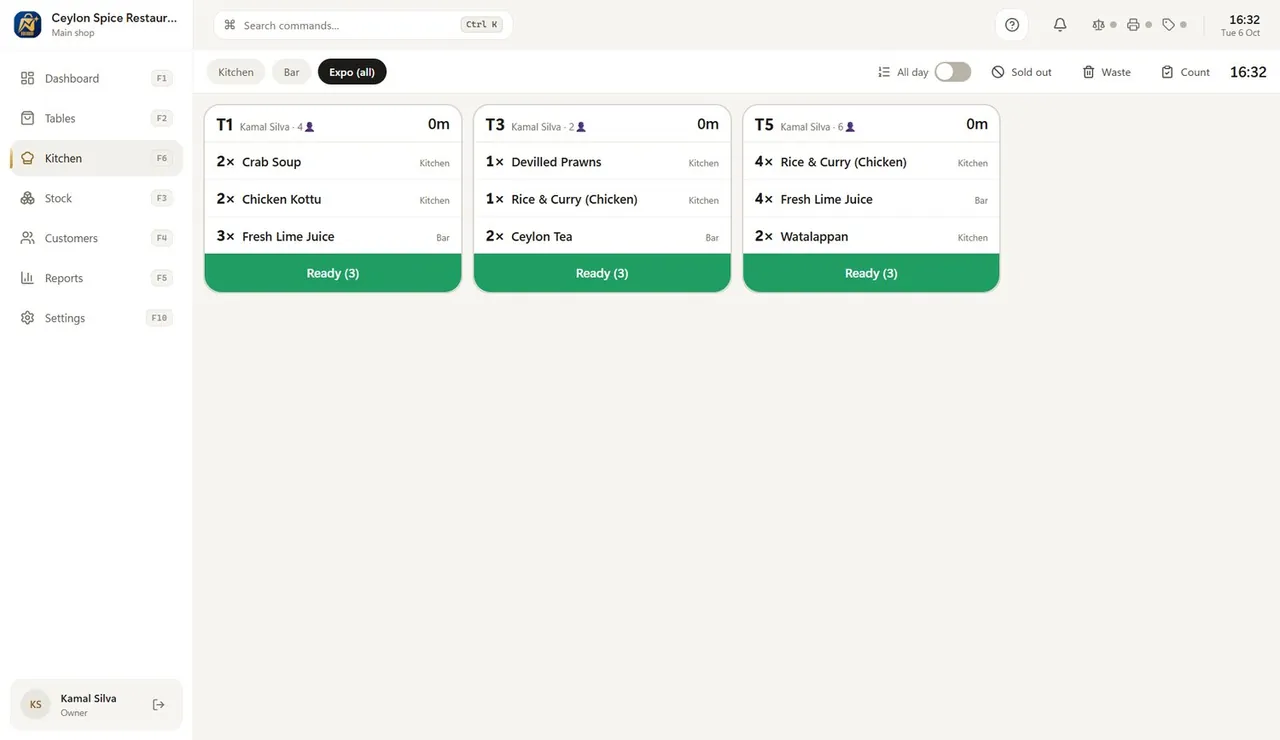
- Kitchen display and kitchen order tickets by station and course
- Modifiers, notes and allergy warnings
- Transfer, merge, split and move items
- Manager approval by PIN for discounts and voids
- Table reservations
- Counter sales with tokens
- Delivery-app inbox (PickMe, UberEats)
- Recipes, ingredient stock and food-cost report
- Sold-out switch, waste and stock count on the kitchen screen
- Restaurant reports and menu engineering
How a day works
- 1Draw your floor plan under Settings, Restaurant: floors, tables and seats. Add stations (Kitchen, Bar) and the menu with courses and modifiers (cooking style, extras).
- 2Staff pair their phones with a 6-digit code and sign in with a PIN.
- 3The waiter opens a table on the phone, adds items and presses Send. Kitchen tickets print or appear on the kitchen screen by station, by course.
- 4The kitchen taps items as they cook, then Ready. The waiter's phone shows it at once.
- 5Need to change something? Move a table, merge two bills, move items, discount with a manager PIN, or void with a reason (and mark it as waste).
- 6The cashier prints the bill (service charge and VAT worked out), takes payment and the table turns free.
Screens you will use
- Tables (floor, counter, orders ahead)
- Kitchen
- Stock (menu, recipes, ingredients)
- Reports (Restaurant, Food cost)
- Settings (Restaurant)
Starting categories
StartersRice & KottuCurriesNoodles & PastaGrillSeafoodDessertsBeveragesBar
Rename, add or remove any of them.
Tip
Give each waiter their own PIN. Every order, discount and void carries their name.